

Know who's coming before they walk in.
One form builder for video sessions, networking rooms, communities and programs, with suggested fields, templates and CSV or Excel export. No separate form tool, no copying answers across.
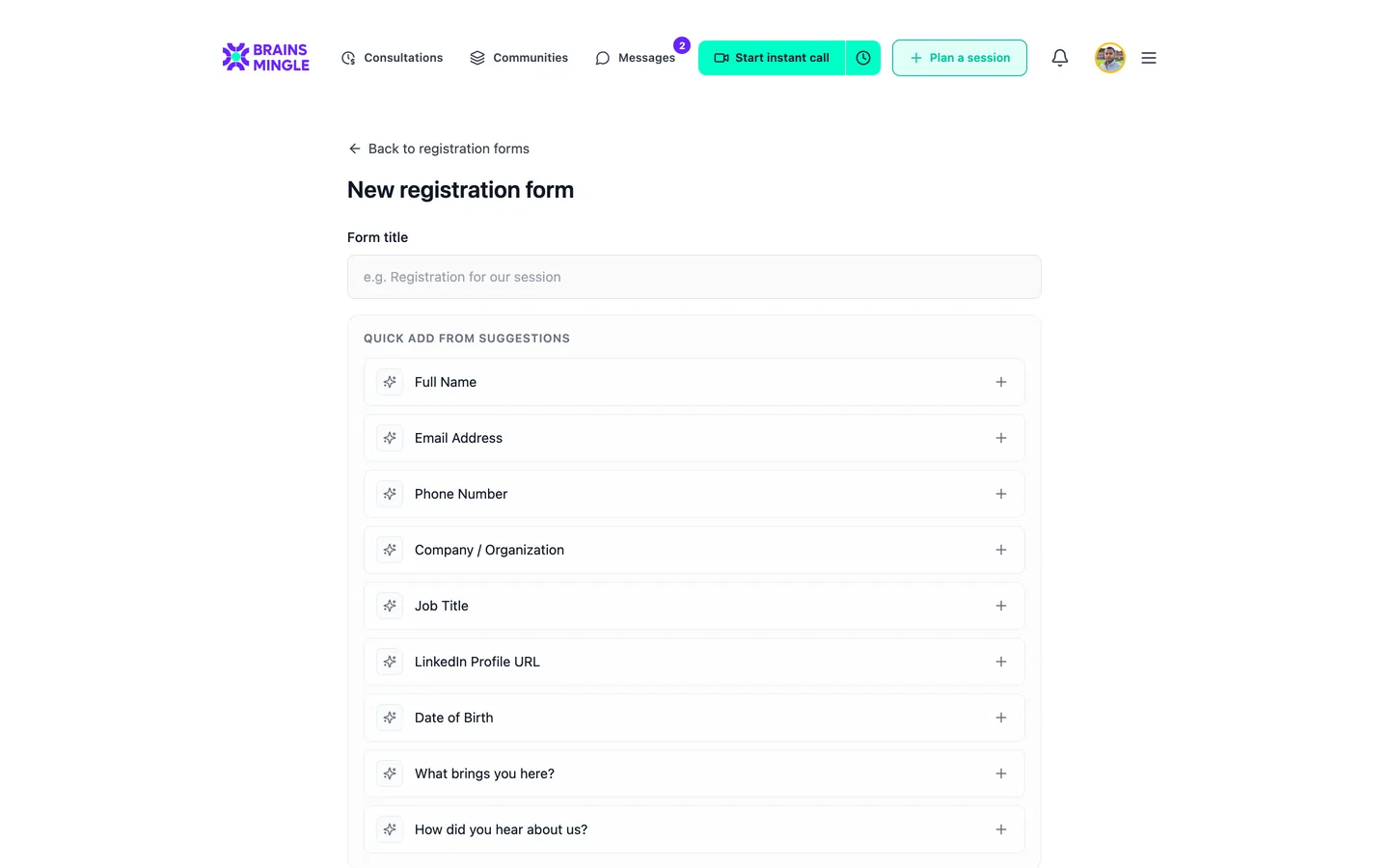
A new form starts with suggested fields. Add one with a click, or start from a template.
- Video sessions
- Gate a call, workshop or webinar behind a form.
- Networking rooms
- Know who's in the room before the first round.
- Communities
- A join form, with rules that let people in or turn them away.
- Programs
- One registration form for a whole series of sessions.
Registration forms that ask only what you need to know.
Start from suggested fields like name, email, company, job title and LinkedIn, then write your own questions. Answers from people's profiles are filled in for them.
What's your current role?
Short answer · one lineWhat do you hope to get from this cohort?
Long text · a paragraphWhich track are you joining?
Multiple choice · pick oneWhich sessions can you attend?
Checkboxes · pick severalHow many years have you worked in the field?
NumberWhen could you start?
Date
Example questions. Write your own in any of the six languages BrainsMingle speaks.
The form can open the door for you.
Pair a join form with a join mode. Every applicant's answers travel with their request, so the decision is made on what they told you, not a guess.
Auto-approve
Collect the answers, let everyone in. You still know exactly who joined.
Decide by answers
Set rules on the answers. People who meet them are approved; the rest are rejected automatically.
Require approval
Read each application in the pending queue and approve or reject it yourself.
Build the form once. Reuse it every time.
Your speakers and sponsors shouldn't fill in the same form as everyone else.
- Templates
- Save a form as a template and pick it the next time you schedule a session or open a room.
- Prefilled from profiles
- Name, email, company and title come from the person's profile, so they only answer what's new.
- VIP links
- Send a special link to guests who should skip the form and go straight in.
- Answers in the Members tab
- Review each applicant's answers right where you approve them.
Every answer in a table. One click to Excel.
Each question becomes a column and each submission a row, with the time it came in. Download it as CSV or Excel for follow-up, a sponsor or a funder.
- The same table for session registration, networking rooms and community join forms
- CSV and Excel, the whole dataset at once
- The same export appears on course analytics, so reporting looks the same everywhere
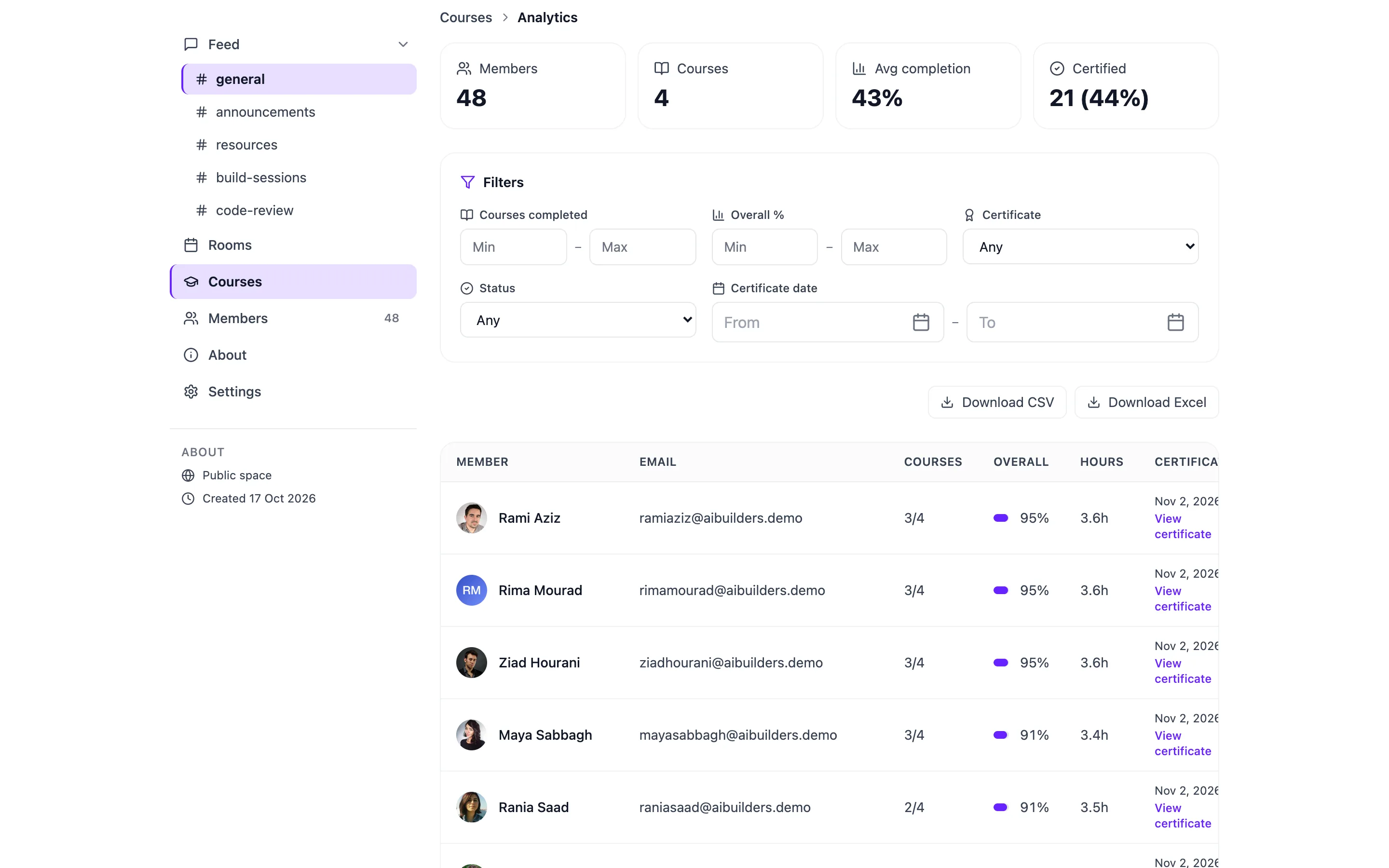
Shown on course analytics. Form responses export the same way.
Do I still need Google Forms or Typeform?
Can I screen people automatically?
Can some guests skip the form?
Where do the answers go?
What kinds of questions can I ask?
Can I reuse a form for my next session?
Know them before they arrive.
Add a form to your next session or community free. Your attendees fill it in once, on the same account they join with.